Streaming devices and available ports
A streaming device adds a service interface to a television, but it also needs a compatible picture connection, power, network access and room behind the screen. Check the whole route before choosing a stick or a separate box.
Confirm the service before the hardware
List the services you actually subscribe to and check their current support for the exact streaming-device model in the United States. An app appearing in a general brand advertisement does not establish availability on every generation or in every region. Include any local media files or casting functions you use, since they may need a different workflow from subscription streaming.
Distinguish the price of the hardware from subscriptions and optional services. Read the setup requirements, including whether an account or payment details are needed for the functions you intend to use. Avoid buying primarily for a button printed with a service logo; that button is useful only if the service and your viewing habits match.
Inspect the television's ports
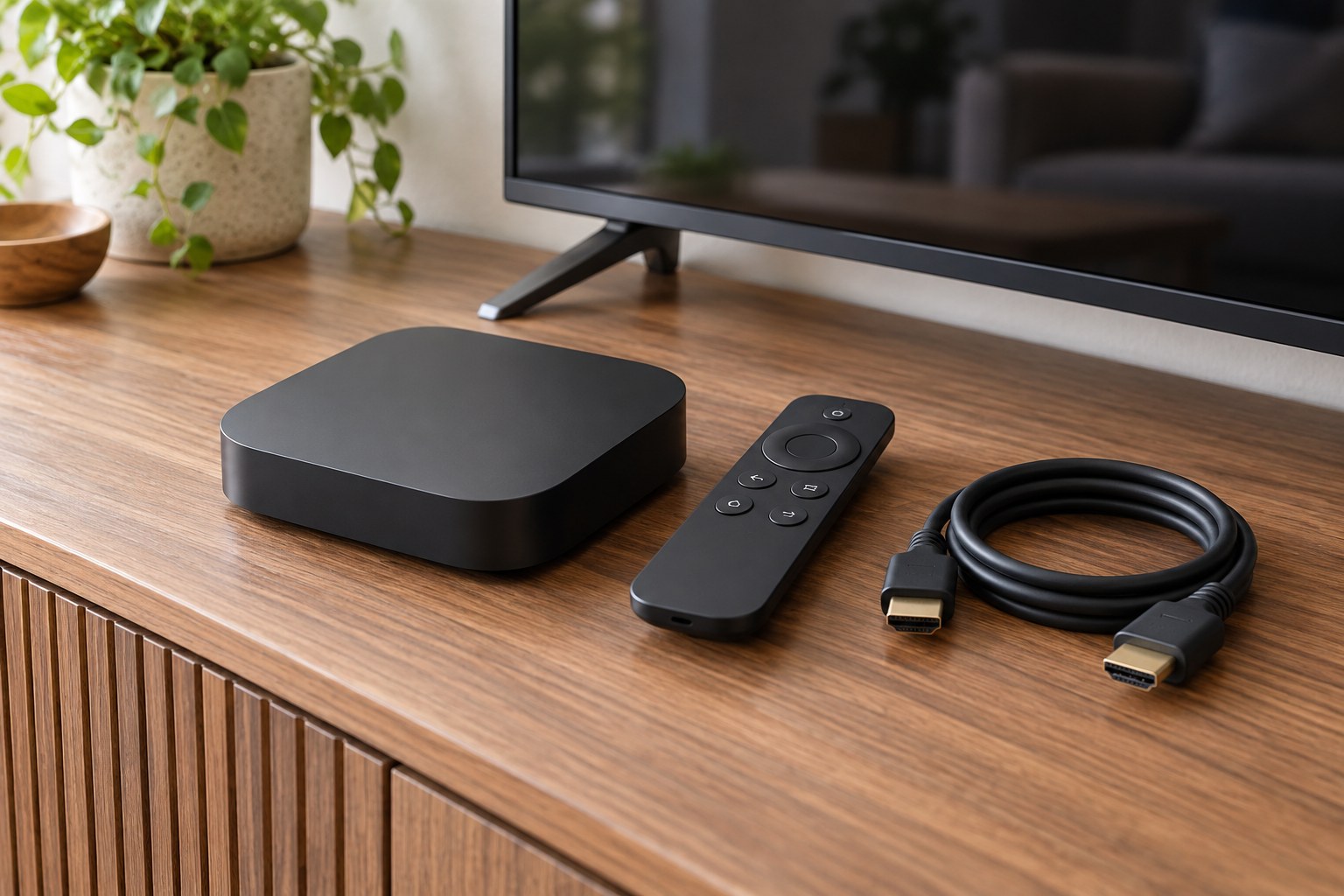
Record the television model and look at its input specifications. Identify an available HDMI input that supports the desired picture mode, then check the space around it. A streaming stick can be wider than the connector and block an adjacent socket. A short extension supplied or approved for the device may solve a clearance problem, but it should be included in the plan.
If every suitable HDMI input is occupied, decide which connection will move before ordering. Adding a switch introduces another control and another compatibility check. A separate streaming box takes shelf space but can be easier to access than a stick pressed behind a wall-mounted display. Compare the complete arrangement, not just the device dimensions.
Treat power as its own connection
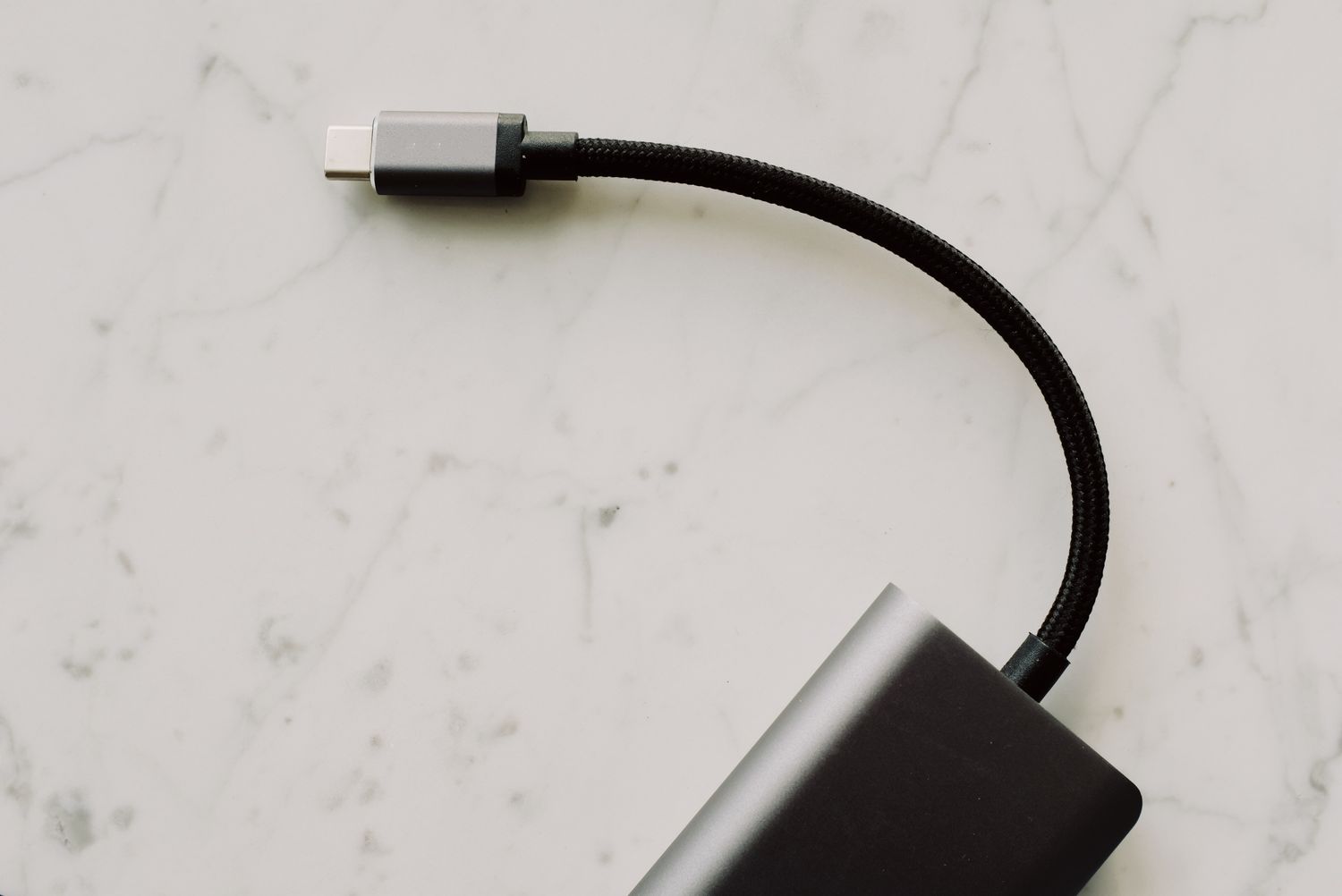
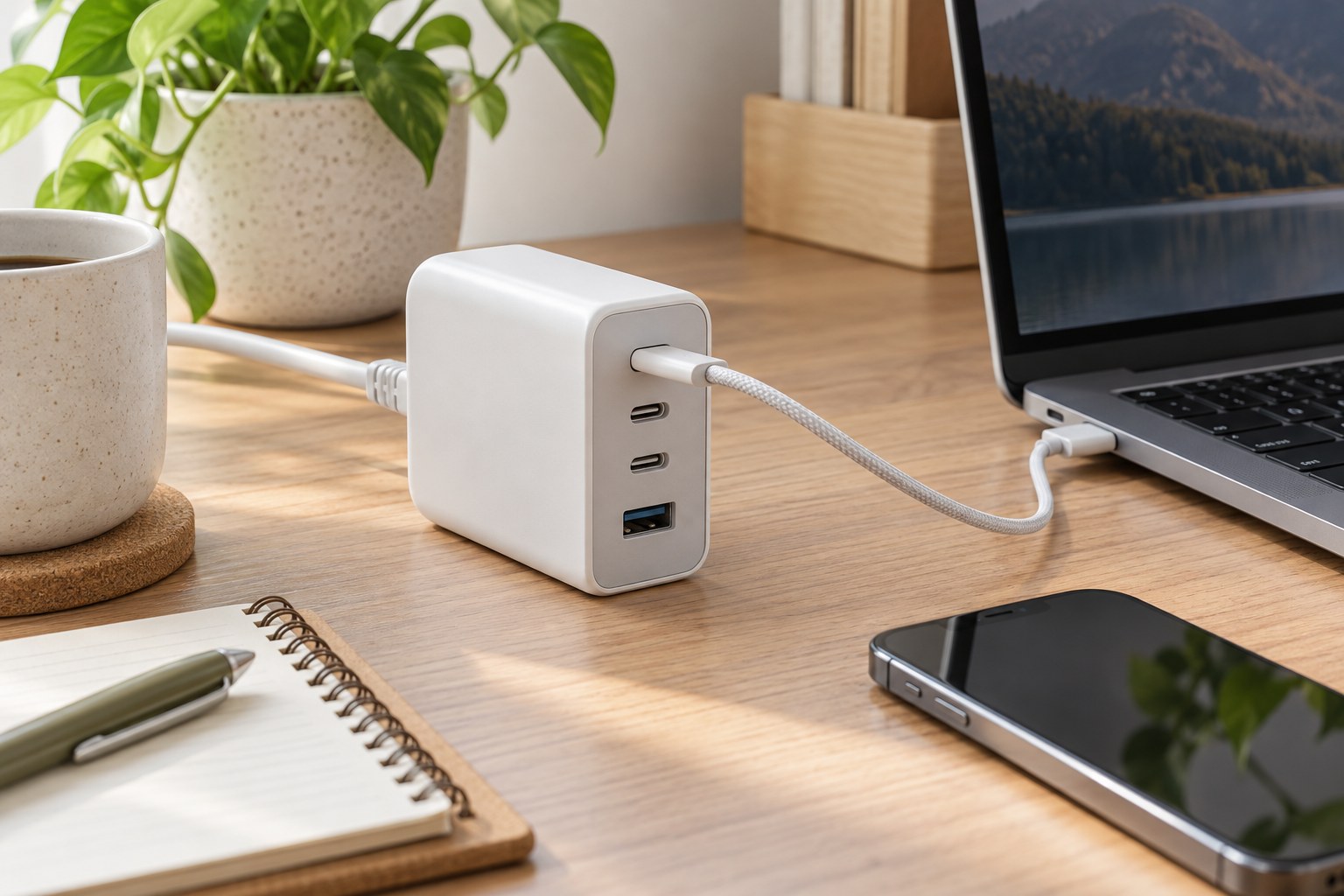
A USB socket on the television is not automatically a suitable power supply for the chosen streamer. Roku explicitly notes that some television USB ports cannot power its players. Follow the exact device's instructions and include the supplied power adapter where required. A cable that physically fits is not enough to establish the correct supply.
Find an accessible outlet and route the lead without pinching it behind the bracket. Consider what happens when the television is switched off: a television-powered device may shut down and need to start again. Test the ordinary turn-on routine, rather than judging the setup only while everything is already running. Keep ventilation space as required by the manufacturer.
Check the network from behind the screen
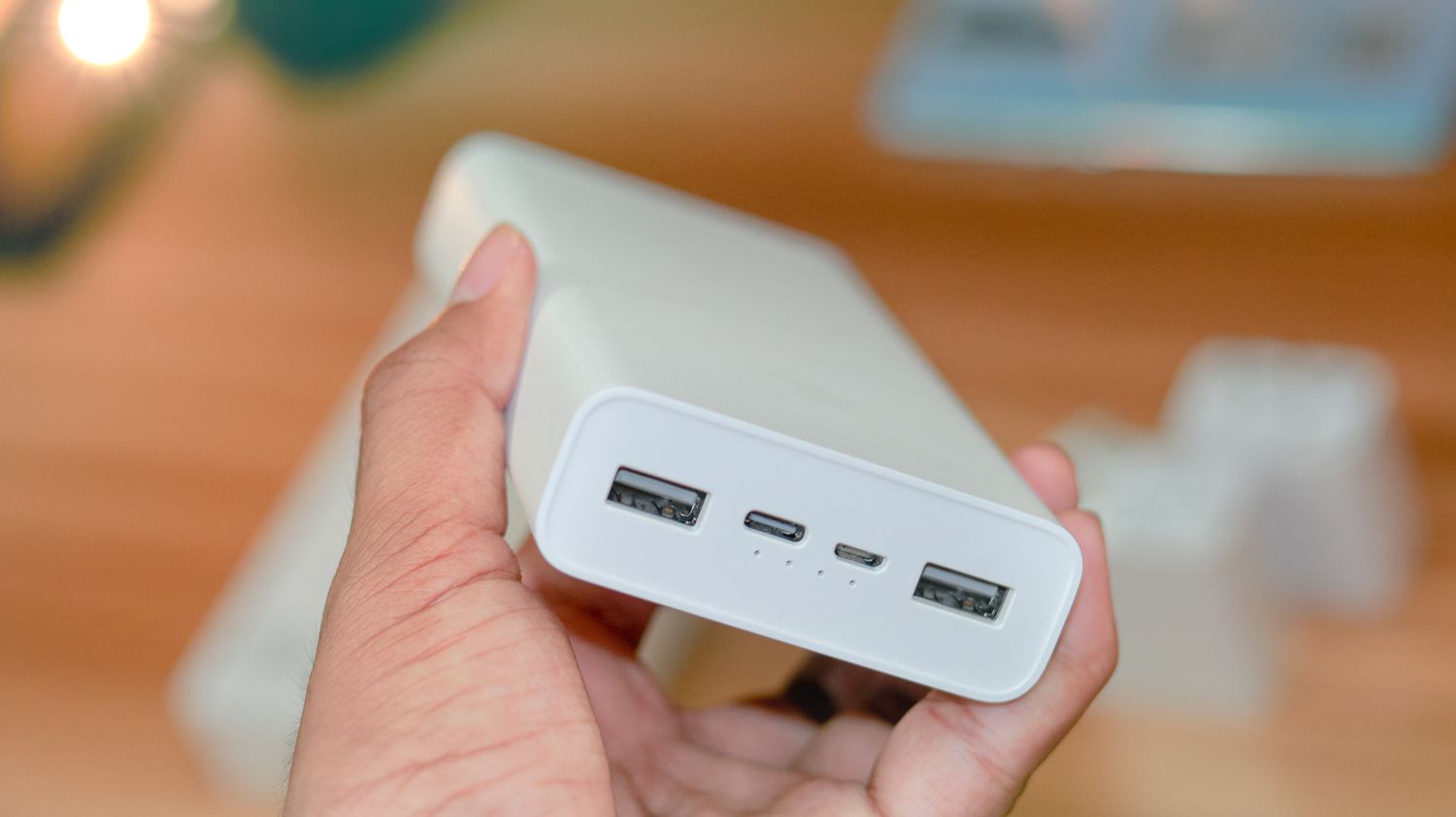
Try the actual location before concluding that a household Wi-Fi connection is sufficient. The area behind a television cabinet can differ from the sofa where you use your phone. If a wired connection is preferred, confirm the streaming device has a suitable port or explicitly supports the required adapter. Do not assume a charging or service port accepts any network accessory.
Use a normal program at the quality setting you intend to watch. If playback stalls, compare another device and check the connection before replacing the streamer. One problematic service can have a different cause from every service failing. Keeping those observations separate makes troubleshooting less expensive and more precise.
Finish with the remote and update routine
Try navigation, captions, volume and input switching with the remotes the household will actually keep. Some control integration depends on the television's settings and supported features. Keep the original remote accessible until the new routine works. Read how software updates are delivered and how to remove the device from your account before selling or giving it away. The useful upgrade is a television setup everyone can operate consistently.