USB hubs and port spacing
A hub can have enough sockets on paper and still be awkward once two wide plugs sit beside each other. Choose the connections and physical layout together, using the devices that will actually share your desk.
Draw the occupied ports
List the equipment you normally connect at the same time: keyboard receiver, storage drive, camera, card reader and charging cable. Count the connectors rather than the devices. A monitor might already contain a hub, while a keyboard receiver may serve more than one compatible accessory. Separate permanent connections from the items you plug in occasionally.
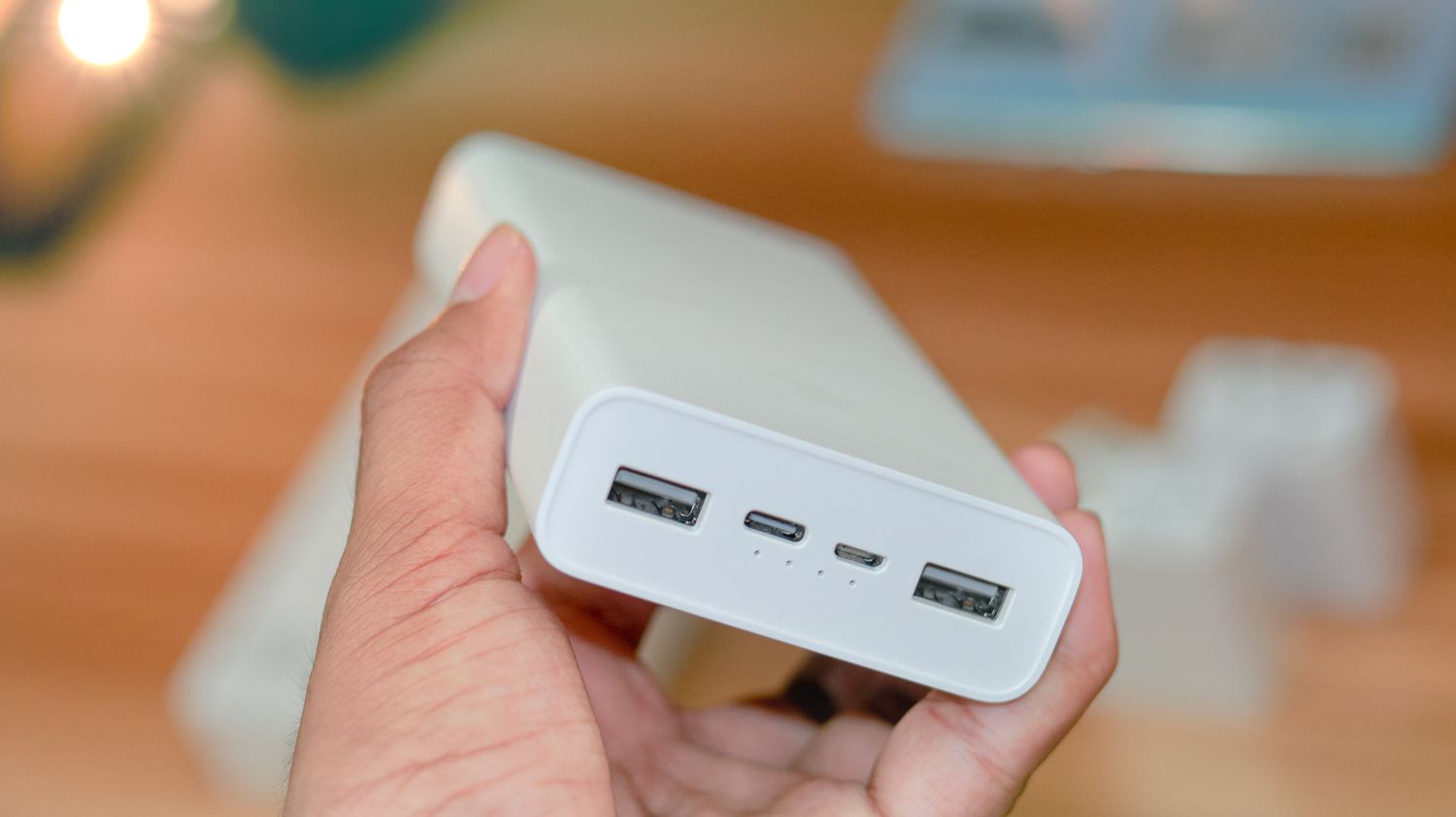
Look at the width of each connector housing. A broad flash drive can cover the neighboring socket even when both connectors use the same standard. Product photographs with empty sockets rarely reveal this problem. Compare a dimensional drawing with your plugs, including the space needed for fingers to remove them without pulling on their cables.
Read what each socket does
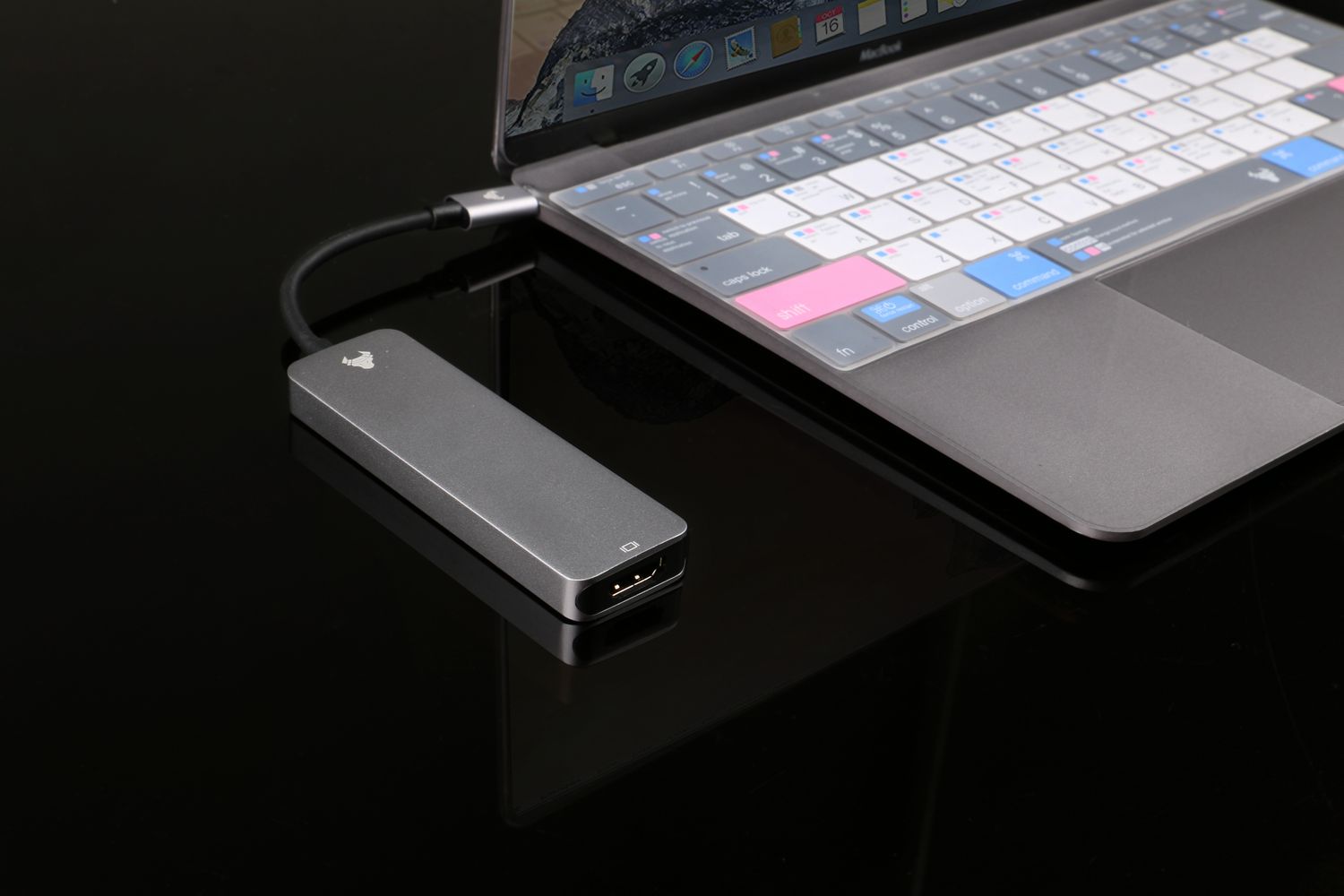
USB-C describes the connector shape; it does not, by itself, establish every data, charging or display function. Read the hub specification port by port. A socket labeled for power input might not accept a storage drive, and a data socket might not charge a laptop. Compare the hub's upstream connection with the computer's documented capabilities.
Data speed and power capability are separate checks. USB-IF provides distinct performance and power markings for certified cables. Apply that same distinction when reviewing the whole setup: the computer, hub and connecting cable all matter. Buying a hub with more sockets does not establish that every attached device can run at its advertised maximum simultaneously.
Put cables where they belong
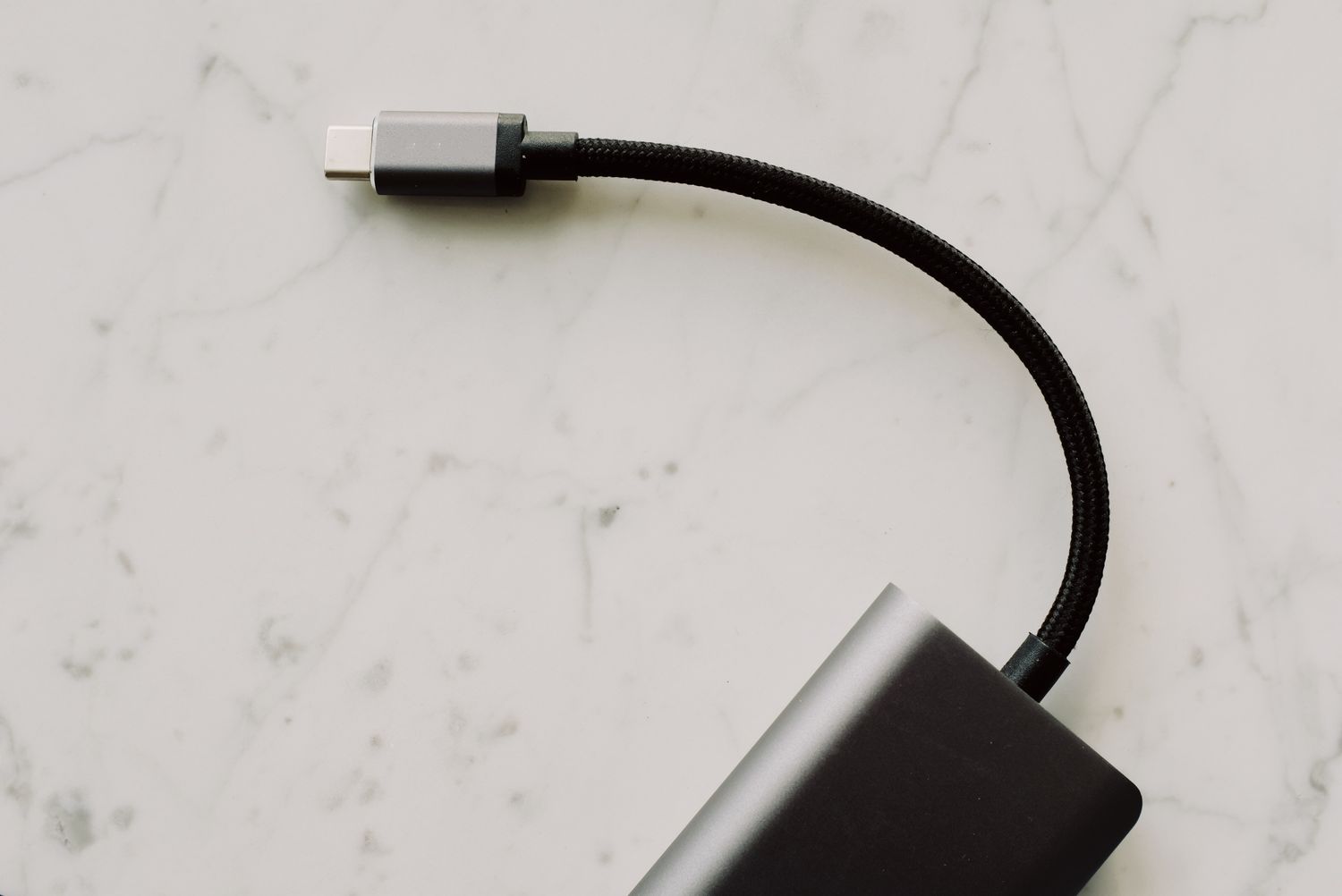
For a permanent desk, rear-facing sockets can keep rarely moved leads out of the way. Front or side sockets are easier for memory cards and temporary drives. Check the upstream cable length before deciding where the hub will sit. A short captive lead should not leave the hub hanging from a laptop port when the computer is raised on a stand.
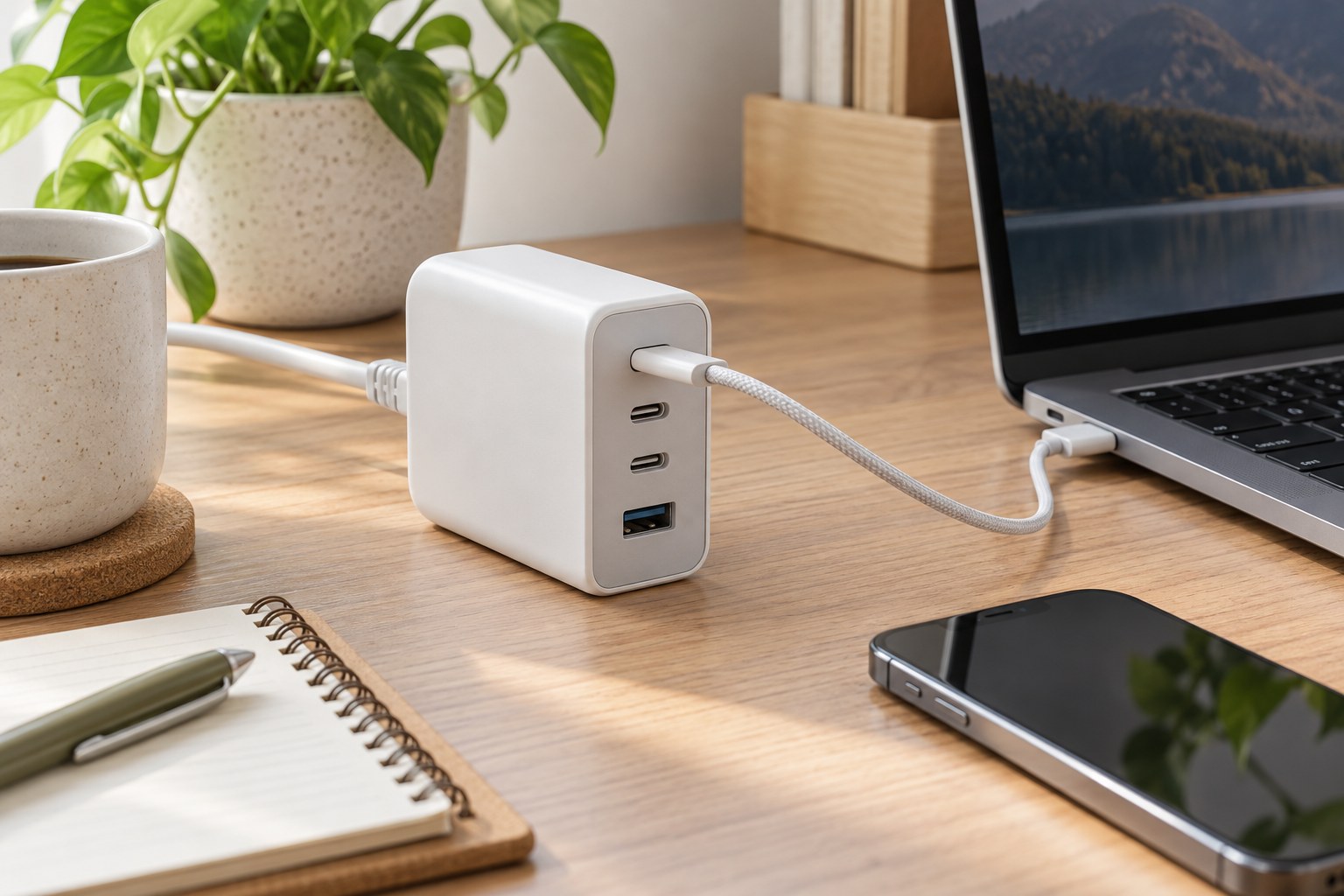
An externally powered hub adds a power adapter and another cable to the arrangement. Include both in the space plan and follow the manufacturer's supply requirements. Keep ventilation openings clear and leave access to disconnect the hub. A dense cable bundle should not place sideways force on small connectors.
Try the complete combination
During the return period, connect the equipment you intend to use together and perform ordinary tasks: copy files, join a call and reconnect after sleep. Record the exact combination if something disconnects. Test a troublesome device directly at the computer before blaming the hub. The useful outcome is a repeatable working arrangement, not simply a full row of illuminated ports.